How to troubleshoot abnormalities such as a blurry image on the Dream Air headset?
Print
Modified on: Tue, 3 Nov, 2026 at 4:51 PM
A: It is recommended to first compare the game image on the computer monitor with the game image in the headset.
Important judgment: If the image on the computer monitor is also abnormal, the issue is very likely caused by software. In this case, there is no need to have the user adjust hardware settings such as IPD or lenses.
Troubleshooting steps:
Visual inspection: Carefully check the lens surface for obvious stains, scratches, cracks, bubbles, or other imperfections.
Check the installation: Confirm whether the lenses are installed correctly, whether there is tilting or displacement, or whether they are installed too tightly or too loosely.
Wearing comfort: Adjust the wearing method so that the headset is worn comfortably and stably.
It is recommended to enable the eye-tracking wearing adjustment prompt
and adjust the position according to the on-screen instructions.
Adjust the IPD: Adjust the IPD value until the lines in the image can be seen clearly. The sweet spot is a range,
and Pimax headset screens have an angled design, so there is no need to worry about small differences between
the IPD value and your actual interpupillary distance.
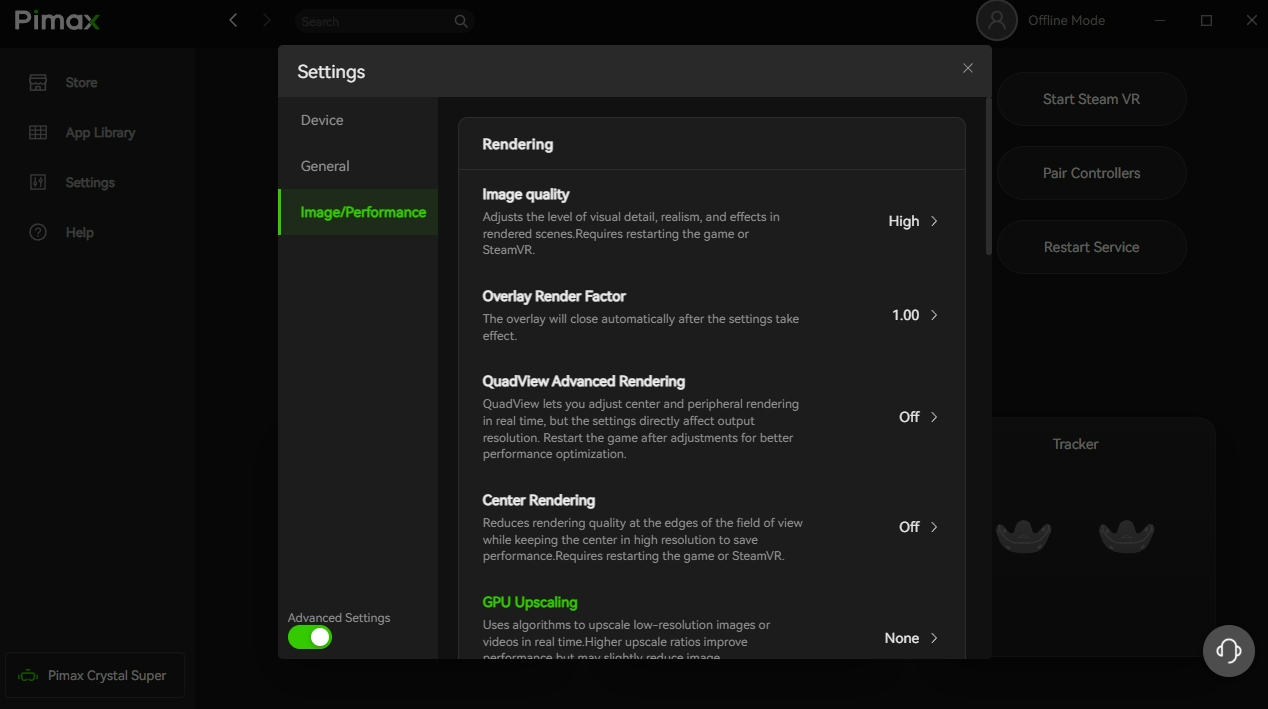
Image quality adjustment: Adjust the image quality appropriately and observe whether it helps the headset's display effect.
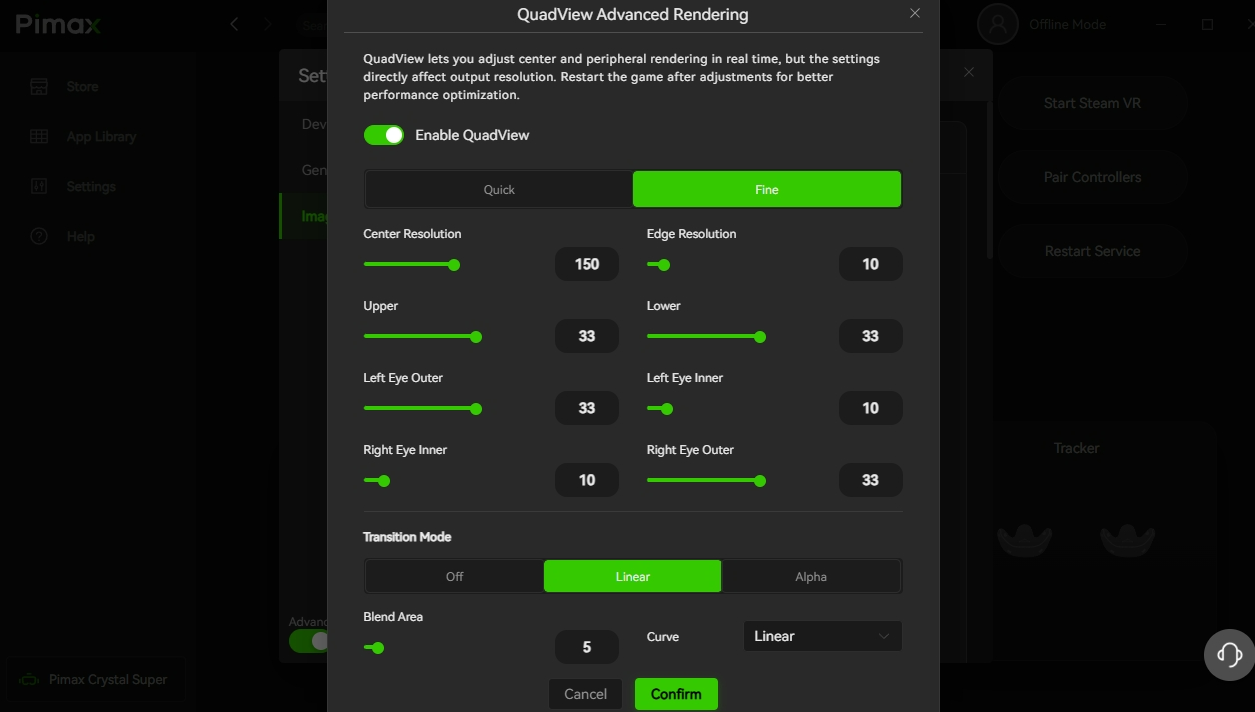
Other image settings: Please turn off settings such as Quad Views, Smart Smoothing, Lock to Half Framerate, IPD Offset, and Vertical Offset, and observe whether this helps. For chromatic dispersion or color fringing issues, you can adjust the screen brightness and color contrast options and observe whether there is improvement.
Did you find it helpful?
Yes
No
Send feedback Sorry we couldn't be helpful. Help us improve this article with your feedback.
