How to troubleshoot abnormal controller button mapping on the Dream Air?
Print
Modified on: Tue, 3 Nov, 2026 at 4:55 PM
A: This issue is usually related to SteamVR controller bindings or OpenXR Runtime settings. Please troubleshoot in the following steps:
Confirm pairing status: In Pimax Play, confirm that both controllers have been successfully paired and that the headset and controllers are in normal status.
Set the OpenXR Runtime: In the Pimax headset settings, set the OpenXR Runtime to Pimax OpenXR.
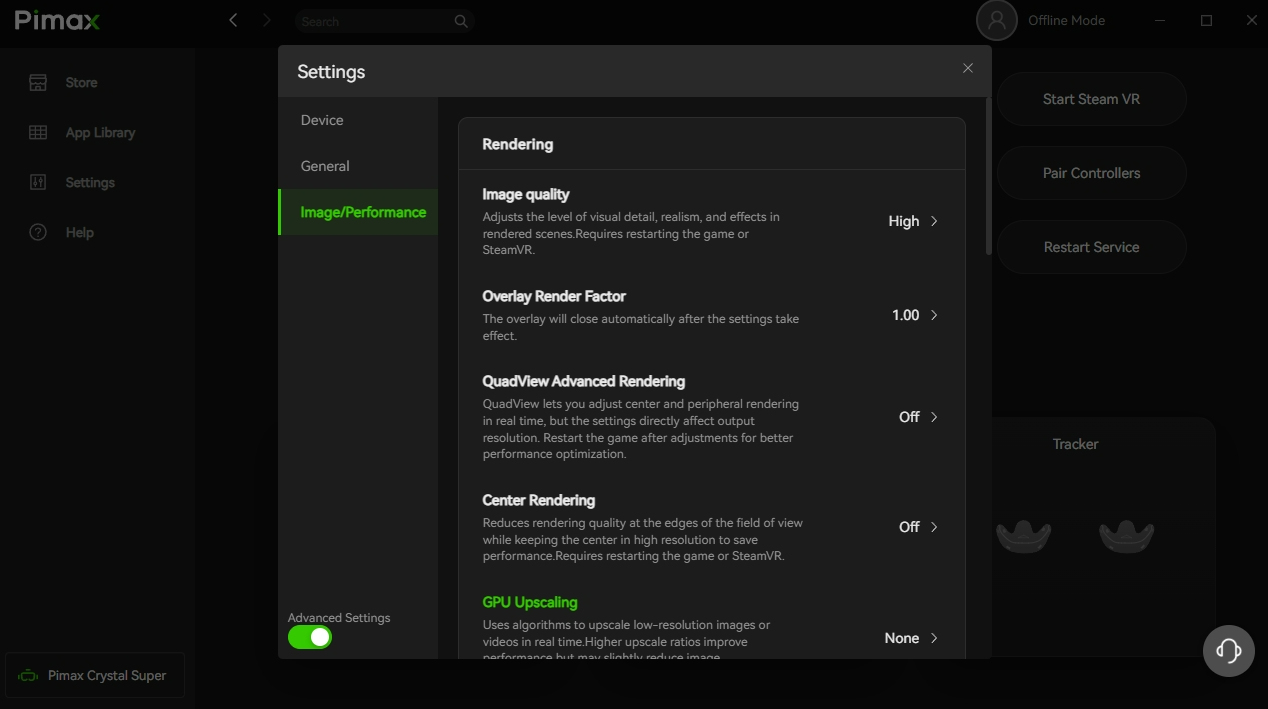
Confirm SteamVR recognition status: Launch SteamVR and confirm that SteamVR has recognized the headset and both controllers.
Open the controller settings: Open SteamVR settings and go to Controller settings.
Manage controller bindings: Select Manage Controller Bindings, and choose or create a button mapping suitable for the Pimax Controller for the current game.
Oculus input compatibility: If the game requires Oculus-type input, you can map the Pimax controllers to an Oculus controller scheme in the SteamVR controller bindings and then test.
Test the buttons: After configuration is complete, use the Test Controller function to check whether the buttons work, then enter the game to verify.
Confirm the scope of the issue: If only one specific game is abnormal, please record the game name and the current binding scheme; if all games are abnormal, please also check the Pimax Play, SteamVR, and OpenXR settings.
Did you find it helpful?
Yes
No
Send feedback Sorry we couldn't be helpful. Help us improve this article with your feedback.
