What should I do if the Dream Air image is tilted or the horizontal positioning is inaccurate?
Print
Modified on: Tue, 3 Nov, 2026 at 5:00 PM
A: Symptoms: When using the Dream Air, the game image or the client overlay window appears noticeably tilted. Common descriptions include "the image is crooked," "horizontal positioning is inaccurate," and "re-doing room setup doesn't help." This may occur after reinstalling Pimax Play or completing room calibration again, with the display still failing to return to a normal horizontal level.
Troubleshooting steps
Close Pimax Play: Confirm that Pimax Play and any running VR games have exited.
Delete the SLAM cache: In Windows File Explorer, open C:\ProgramData\pimax\slam and delete the map cache files in that path.
Redo room calibration: Restart Pimax Play and perform a complete room calibration again. After calibration, keep the headset level and stationary for about 10 seconds, then enter the game to check whether the image has recovered.
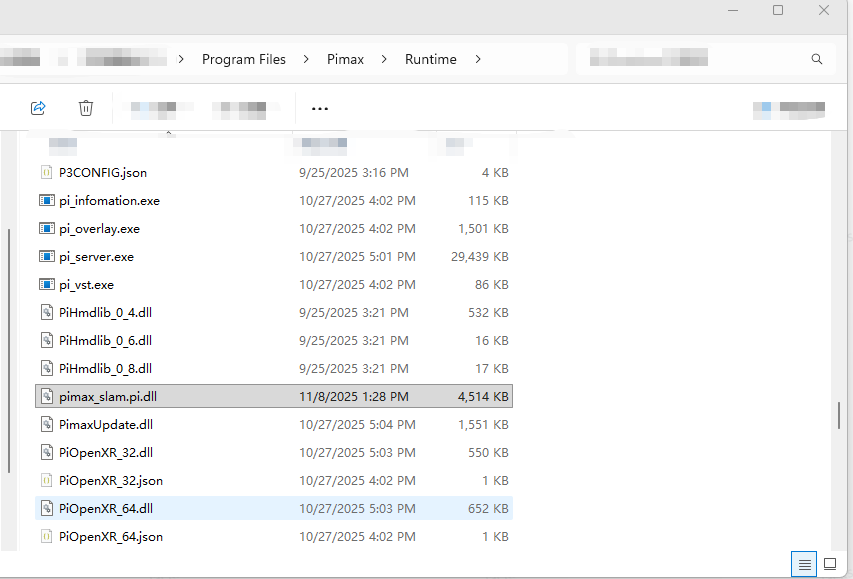
Verify with a matching SLAM component: Only perform this if the Pimax official support channel has provided a SLAM component file matching your current environment. Close Pimax Play first, then contact an engineer to replace the corresponding files under C:\Program Files\Pimax\Runtime, and restart Pimax Play to verify. Do not use SLAM files of unknown origin or files that do not belong to your current device environment.
Distinguish between the game image and the client overlay window: If the game image has recovered to an acceptable level but the Pimax Play room positioning page or client overlay window is still tilted, redo the cache cleanup and room calibration, and keep screenshots for further troubleshooting.
Did you find it helpful?
Yes
No
Send feedback Sorry we couldn't be helpful. Help us improve this article with your feedback.
