
Audio settings may have been accidentally changed or muted.
The AMD or NVIDIA graphics driver may be outdated or corrupted.
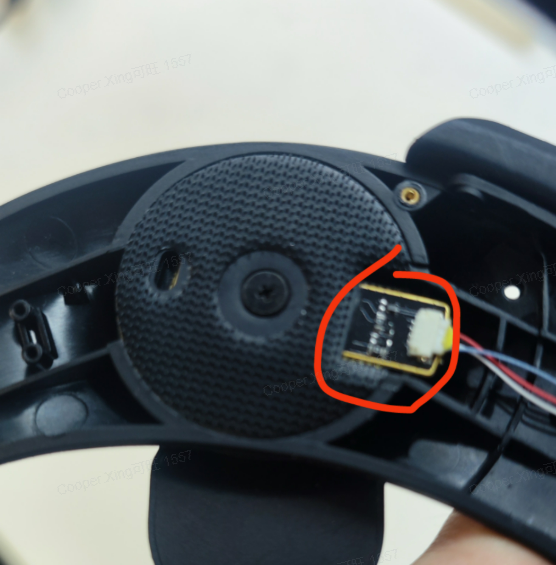
There may be a hardware connection issue, such as headphones not properly inserted or a faulty speaker cable.
Sound loss in one ear may indicate a damaged headphone speaker.
Troubleshooting Steps
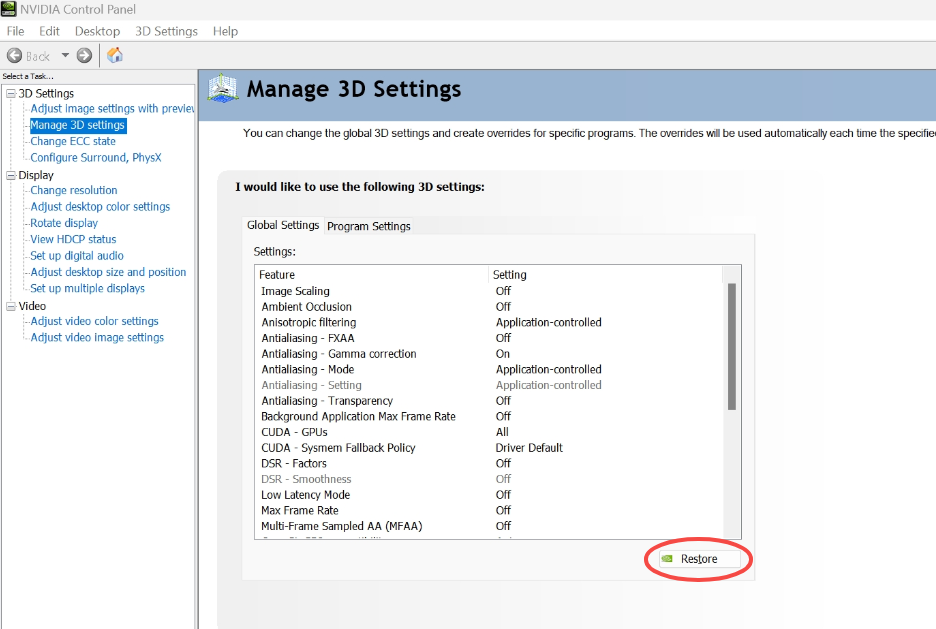
For AMD Graphics Cards: Download drivers from: https://www.amd.com/en/support/download/drivers.html
Chinese version: https://www.amd.com/zh-cn/support/download/drivers.html
Clean Installation Guide: https://community.amd.com/t5/pc-building-how-to-articles/amd-clean-driver-install-uninstall/ta-p/693320For NVIDIA Graphics Cards: Clean Installation Guide:
https://nvidia.custhelp.com/app/answers/detail/a_id/10/~/geforce-experience-driver-installation-failed.-how-do-i-manually-clean-install