How to export Pimax logs?
Print
Modified on: Tue, 3 Nov, 2026 at 5:01 PM
A: Please export logs using one of the three methods below, and note the time the issue occurred. If you have already uploaded logs, you can ignore these instructions.
Method 1: Provide logs directly from the ticket interface (for Pimax Play 1.39.4 and later)
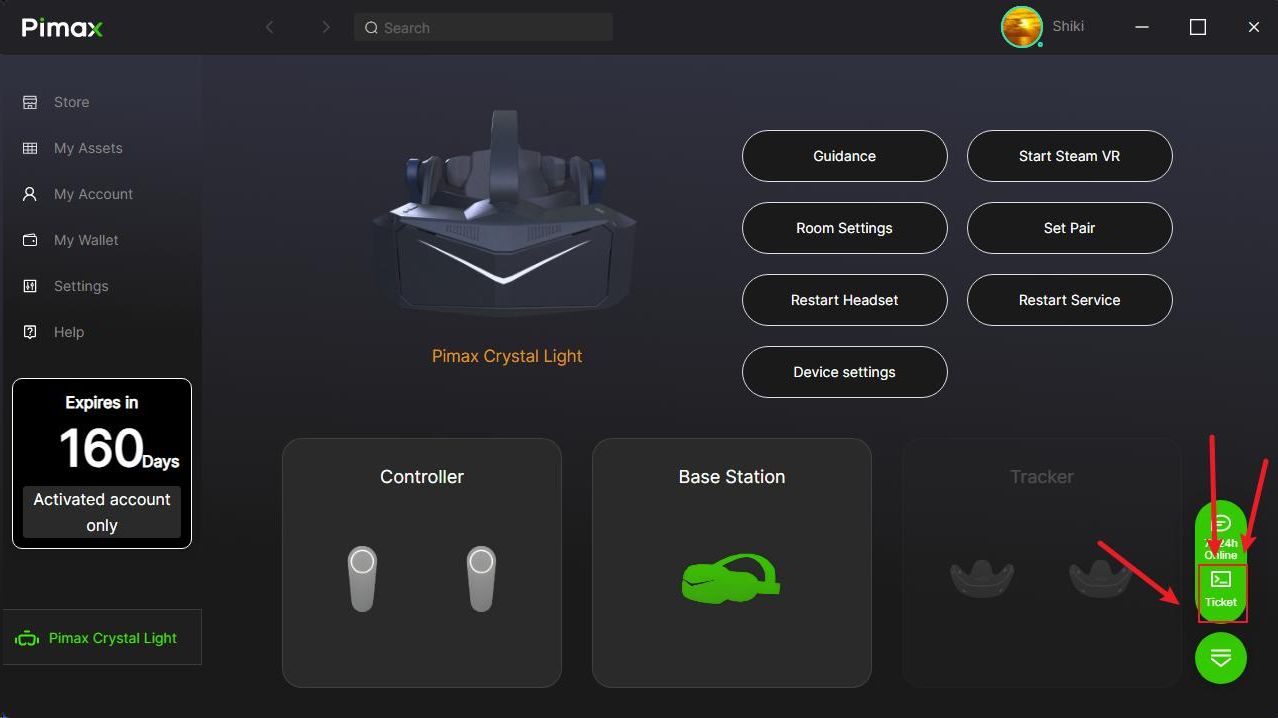
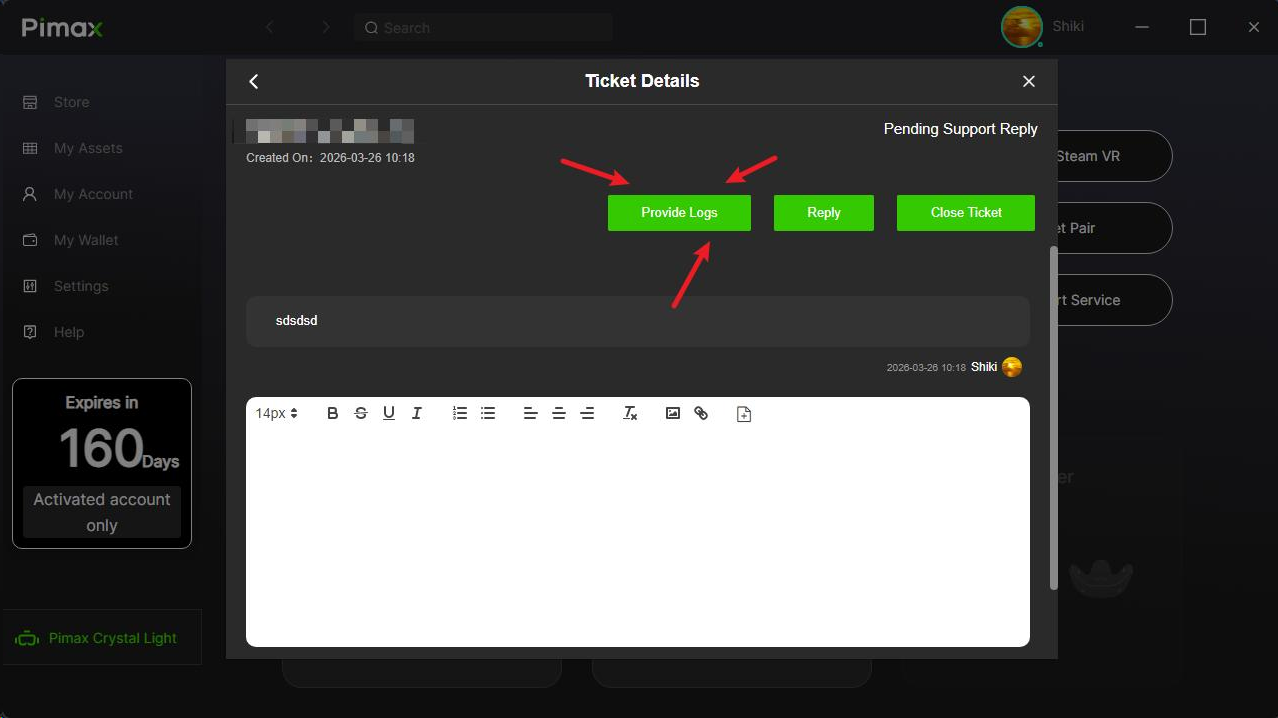
Open the Pimax Play client;
Click the "Ticket" icon in the lower-right corner to open the ticket list;
Select the corresponding ticket and click "Provide Logs."
Method 2: Export logs from the client menu (if Method 1 is unavailable)
Pimax Play 1.x: Select "Headset Settings" → "General" → "Export Logs," then attach the generated log file to the ticket.
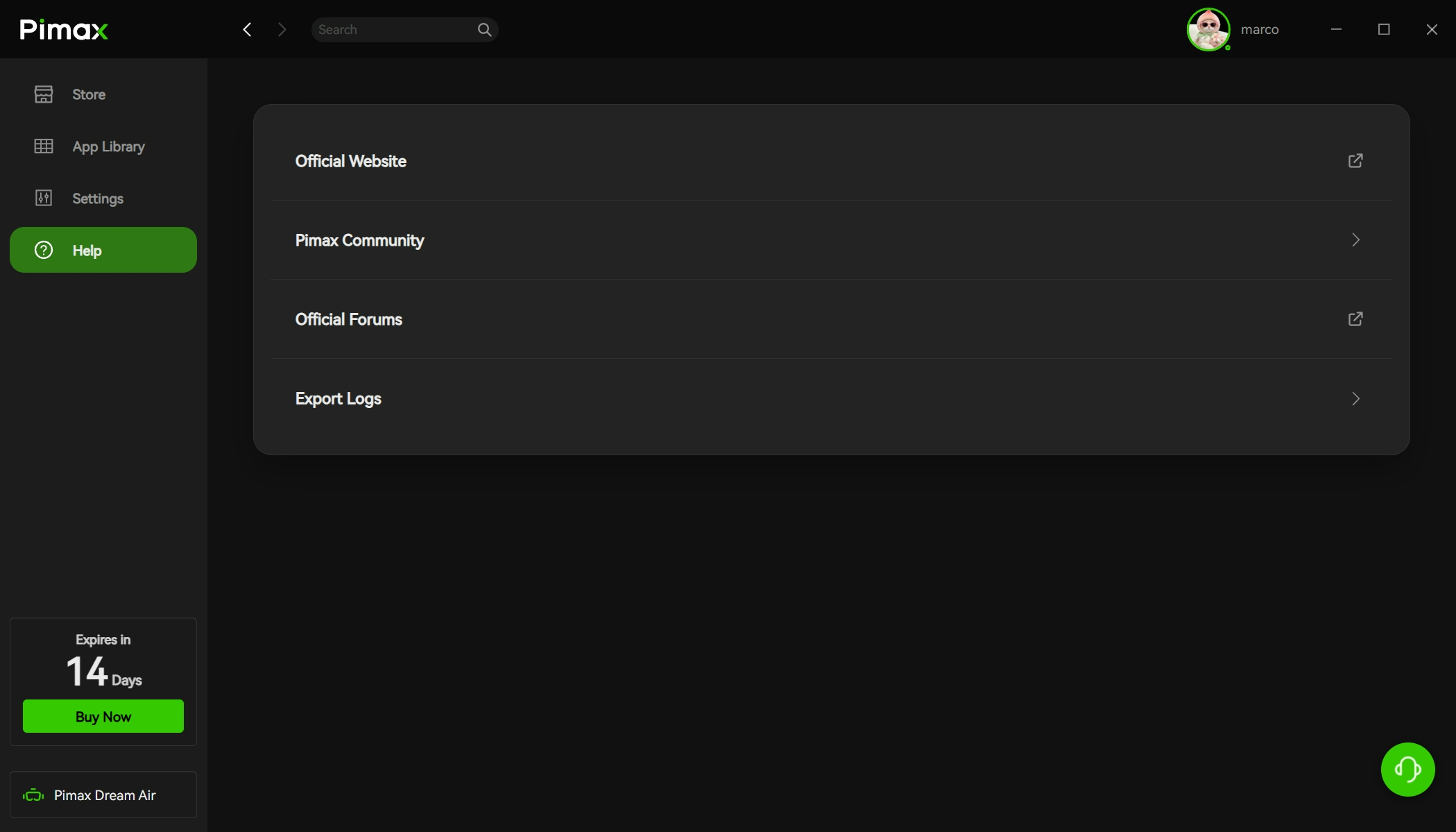
Pimax Play 2.0 and later: Click "Help" on the left side of the main interface → "Export Logs."
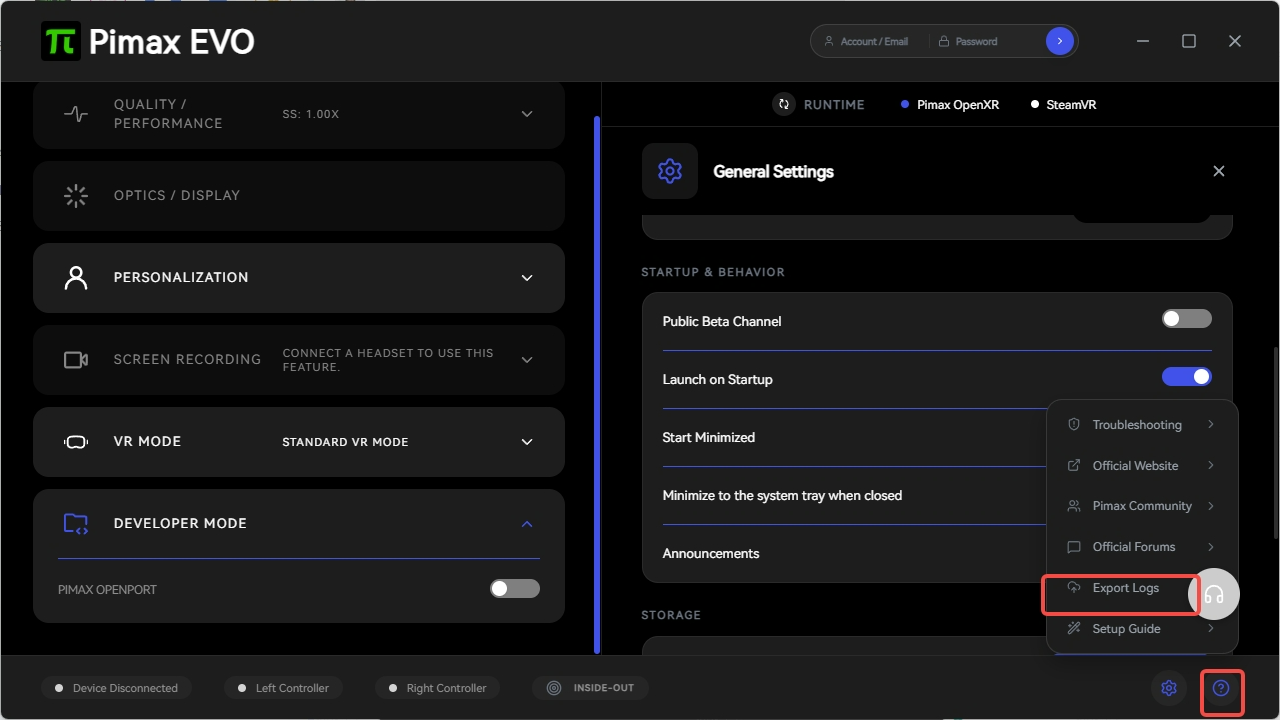
EVO version: Follow the actual interface, or refer to the general export method above.
Method 3: Manually compress the log directories (if neither method above works)
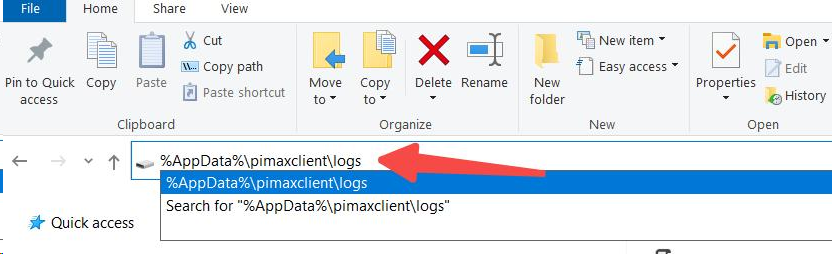
Compress the contents of the following directories into a single zip file and attach it to the ticket:
%AppData%\pimaxclient\logs
%LocalAppData%\Pimax
Steps: Open Windows File Explorer, enter the paths above in the address bar and press Enter to jump to each directory. Compress all contents of these directories into a single zip file.
Note: If the manually exported log file is larger than 20MB, please upload it to Google Drive or WeTransfer and send us the share link.
Did you find it helpful?
Yes
No
Send feedback Sorry we couldn't be helpful. Help us improve this article with your feedback.
